Why people outgrow Apple Notes
- It only truly lives on Apple hardware. There is a limited iCloud web app, but no real Windows, Android or Linux experience.
- There is no bulk export. Your notes sit in a proprietary database, and getting years of notes out means copying them one by one or using third-party tools.
- Organization strains at scale. Folders, tags and smart folders work well for hundreds of notes, less well for thousands.
- No plugins or automation. What Apple ships is what you get.
Obsidian keeps the fast capture and clean reading experience people love, while fixing the rest: every note is a Markdown file in a folder you control, it runs everywhere, and thousands of community plugins can extend it in any direction.
Apple Notes vs Obsidian with Notebook Navigator
| Apple Notes | Obsidian + Notebook Navigator | |
|---|---|---|
| Price | Free with Apple devices | Free for personal use; Notebook Navigator is free and open source |
| Platforms | iPhone, iPad, Mac, plus a limited iCloud web app | Windows, macOS, Linux, iOS and Android |
| Where your notes live | Proprietary database synced through iCloud | Plain Markdown files in a folder you control |
| Getting notes out | No bulk export | Notes are already portable files |
| Organization | Folders, tags and smart folders | Folders, nested tags and properties, with colors and custom icons |
| Note list | Snippets and gallery view | Visual previews with automatic image thumbnails |
| Sync | iCloud only | iCloud, Obsidian Sync or any file sync service |
| Extensibility | Fixed feature set | Thousands of community plugins |
How to move from Apple Notes to Obsidian
Apple Notes has no export button, but the official, free Obsidian Importer solves that: on a Mac, it reads your notes directly from the Notes database and converts everything to Markdown.
1. Install Obsidian on your Mac
Download Obsidian for free from obsidian.md and create a vault, a folder on your Mac where your notes will live. The import needs to run on a Mac because that is where the Notes database is.
2. Install the Importer plugin
In Obsidian, go to Settings → Community plugins, install Importer, and enable it.
3. Import directly from Apple Notes
Run Importer: Open importer, choose Apple Notes, and grant access when macOS asks. Your notes, folders, images, scans and attachments are converted to Markdown files. No manual export needed.
4. Install Notebook Navigator
Install Notebook Navigator from Community plugins (or with one click from this install link) to get the familiar Apple Notes layout back.
Keep the Apple Notes feel
Notebook Navigator was built with Apple Notes as a direct inspiration, so the workflow carries over naturally:
- Folder sidebar → folder pane. Browse your folders on the left, just like Apple Notes.
- Note list and gallery view → visual previews. Every note shows a text preview and an automatic image thumbnail.
- Pinned notes → pinned notes and shortcuts, always at the top.
- Tags → a hierarchical tag browser with rainbow colors and custom icons.
- And something Apple Notes never had: a visual photo calendar that turns daily notes into a journal.
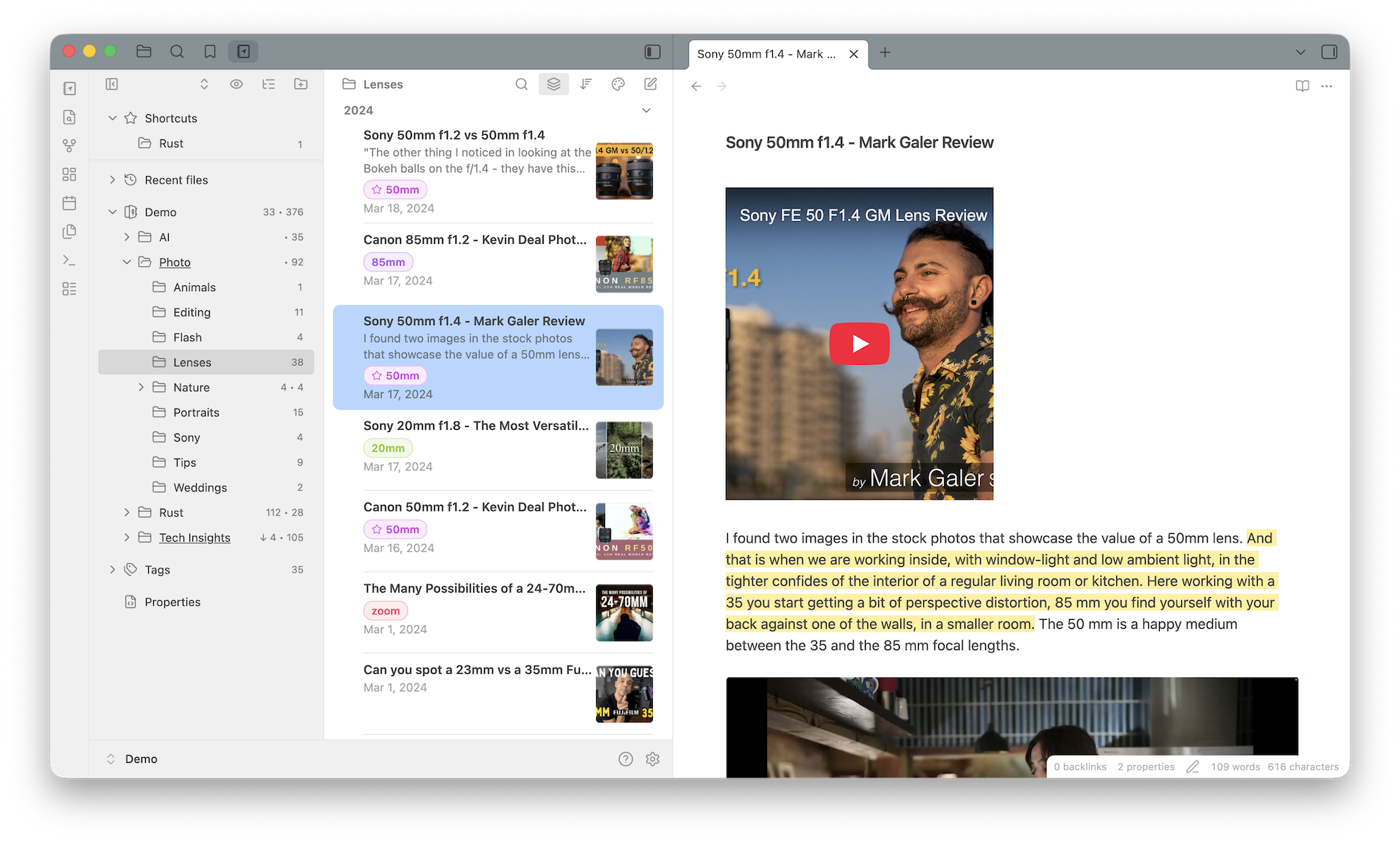
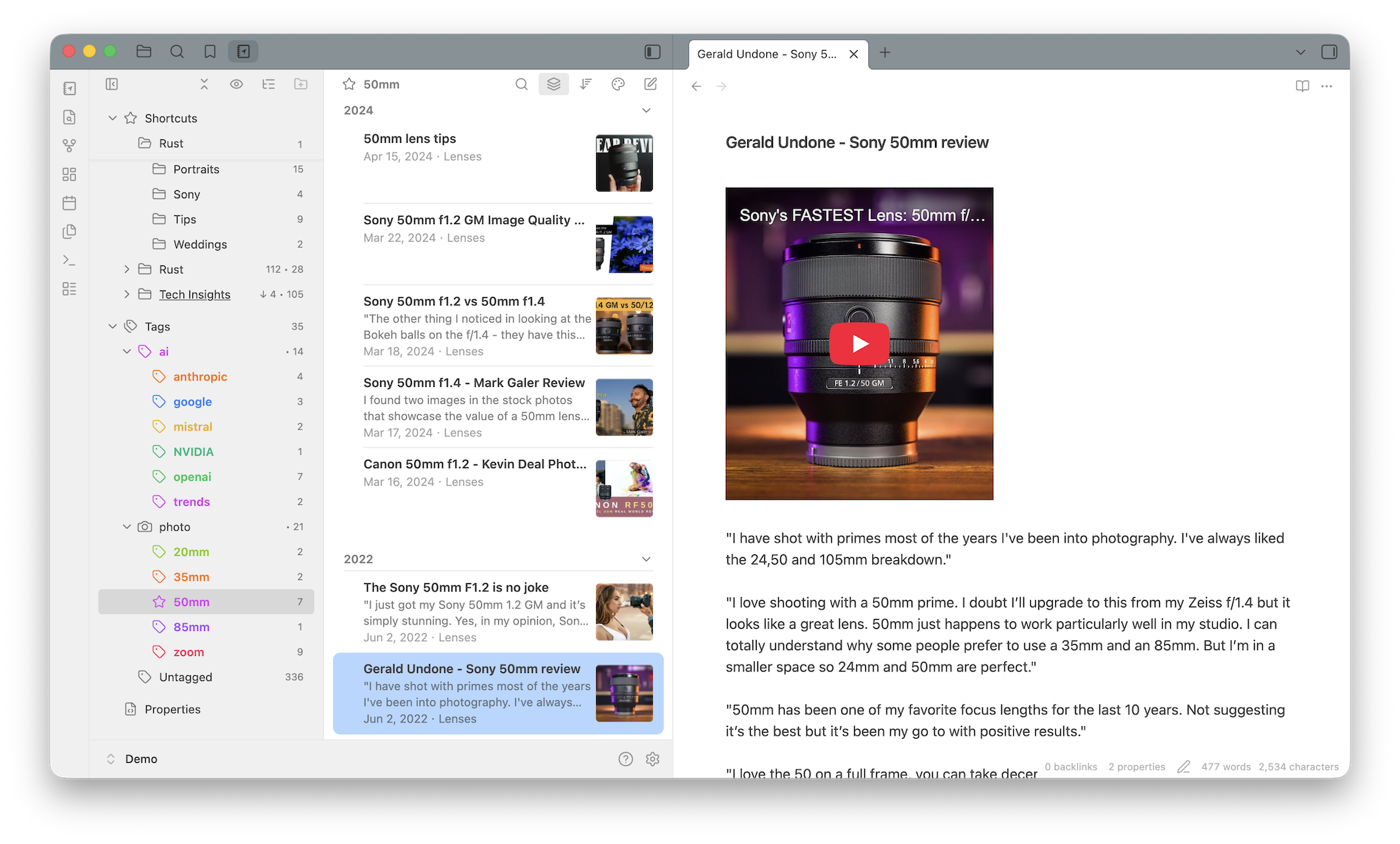
Notebook Navigator is a file browser, not a database: it never moves, renames or reorganizes your notes, and uninstalling it leaves your vault exactly as it was.
Frequently asked questions
How do I move my notes from Apple Notes to Obsidian?
On a Mac, install the official Obsidian Importer plugin and choose Apple Notes. It reads your notes directly from the Notes database, no manual export needed, and converts them to Markdown, including images, scans and attachments.
Is Obsidian a good Apple Notes alternative?
Yes, if you want your notes on every platform and stored as files you own. Obsidian runs on Windows, macOS, Linux, iOS and Android, and the free Notebook Navigator plugin recreates the clean Apple Notes interface.
Can Obsidian look like Apple Notes?
Yes. Notebook Navigator replaces Obsidian's default file tree with an Apple Notes style layout: folders on the left, notes with previews and thumbnails on the right, plus pinned notes and a visual calendar.
Does Obsidian work on iPhone and iPad?
Yes. Obsidian has iOS and iPadOS apps with full Notebook Navigator support, including swipe navigation. Sync your vault with iCloud Drive, Obsidian Sync or any file sync service.
What happens to my drawings, scans and photos?
The importer copies them into your vault as regular files, so they stay attached to the notes that reference them.
Your notes, on every device you own
Notebook Navigator is free, open source, and takes a minute to install.