Why Bear users move to Obsidian
- Bear is Apple-only. There is nothing for Windows, Android or Linux.
- Sync needs a Bear Pro subscription. Without it, your notes stay on one device.
- Notes live in Bear's internal database. They are Markdown at heart, but you only get actual files when you export.
- Themes, but no plugins. Bear looks great, but you cannot extend what it does.
Obsidian keeps the Markdown-first writing experience and adds what Bear cannot: every platform, plain files on disk, free sync options, and thousands of community plugins.
Bear vs Obsidian with Notebook Navigator
| Bear | Obsidian + Notebook Navigator | |
|---|---|---|
| Platforms | Mac, iPhone and iPad only | Windows, macOS, Linux, iOS and Android |
| Price | Free; Bear Pro subscription for sync and full features | Free for personal use; Notebook Navigator is free and open source |
| Where your notes live | Bear's internal database; files only on export | Plain Markdown files in a folder you control |
| Editor | Bear-flavored Markdown hybrid editor | Standard Markdown with live preview |
| Tags | Nested #tags | Nested #tags, shown as a colorful tag tree with custom icons |
| Note list | Previews with images | Previews with automatic image thumbnails |
| Web clipper | Bear browser extension | Official Obsidian Web Clipper extension |
| Extensibility | Themes only | Thousands of community plugins |
How to migrate from Bear to Obsidian
Bear's notes are already Markdown under the hood, so this is one of the smoothest migrations there is, using the official, free Obsidian Importer.
1. Back up your notes in Bear
In Bear on your Mac, choose File → Backup Notes. This produces a single
.bear2bk file containing all your notes and images.
2. Install Obsidian and create a vault
Download Obsidian for free from obsidian.md and create a vault, a folder where your Markdown files will live.
3. Import the backup
In Obsidian, go to Settings → Community plugins, install Importer, run Importer: Open importer, choose Bear (.bear2bk), and select your backup. Notes become Markdown files, images are copied into the vault, and your #tags carry over.
4. Install Notebook Navigator
Install Notebook Navigator from Community plugins (or with one click from this install link) to get a Bear-quality browsing experience.
Keep Bear's polish
Notebook Navigator brings the visual quality Bear users expect:
- Clean note list → visual previews. Each note shows a text preview and an automatic image thumbnail.
- Nested tags → a hierarchical tag tree. Your #work/projects structure appears as a browsable tree, with rainbow colors and custom icons.
- Pinned notes, shortcuts and recent files, always one click away.
- Any look you want. Notebook Navigator works with every Obsidian theme and is fully styleable.
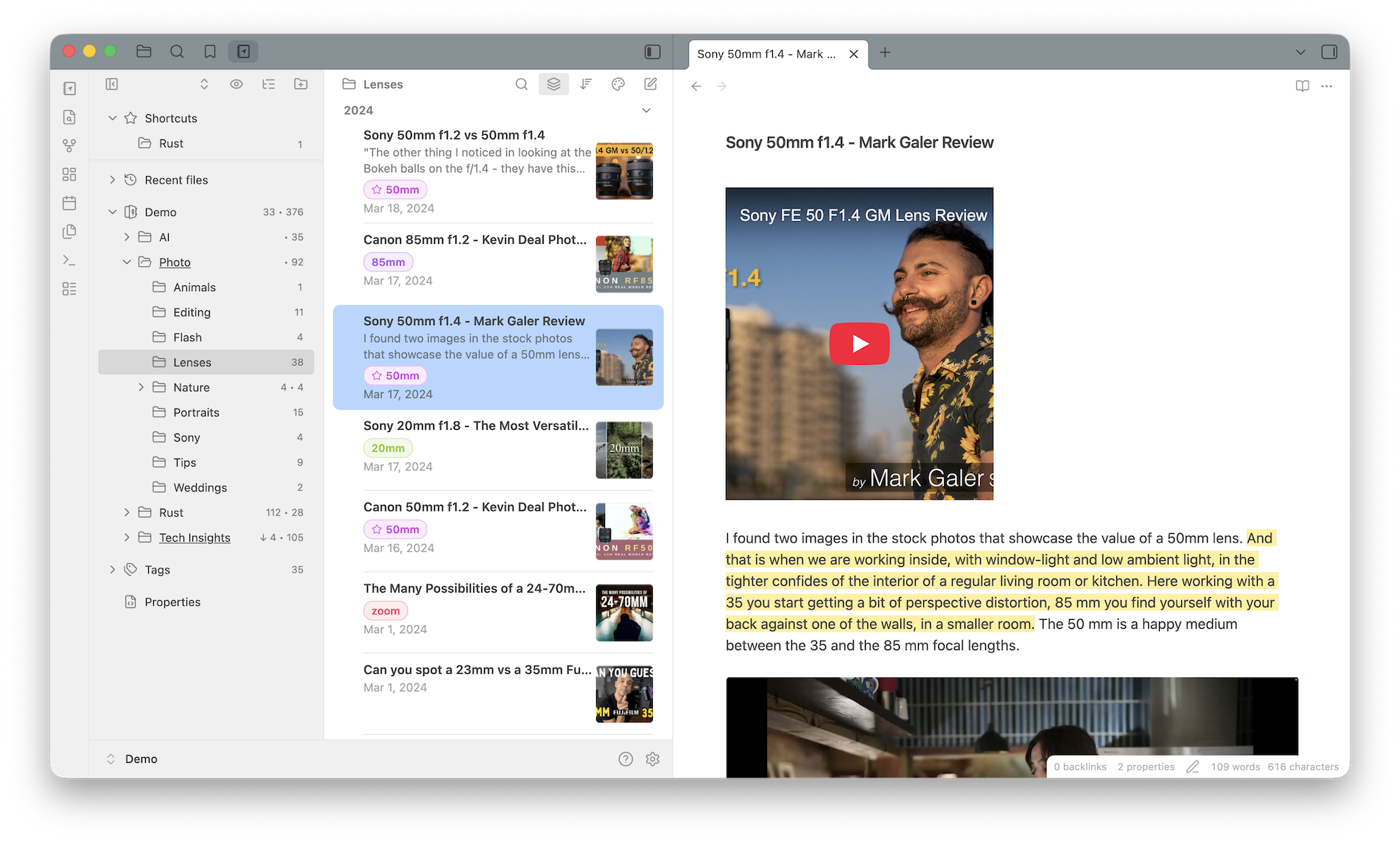
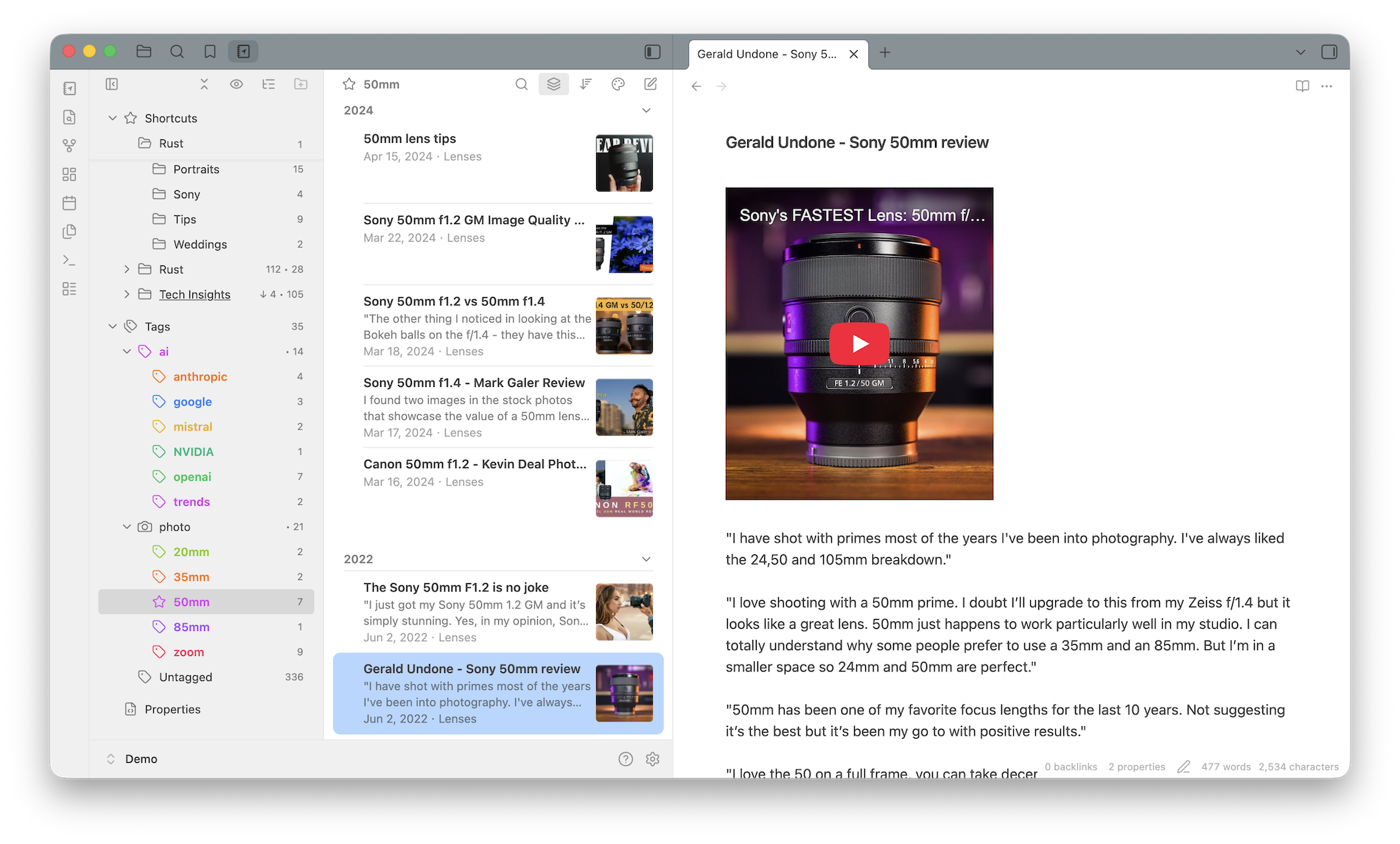
And because everything is plain Markdown, your writing is future-proof: no database, no export step, no lock-in.
Frequently asked questions
How do I move my notes from Bear to Obsidian?
In Bear, create a backup via File → Backup Notes to get a .bear2bk file. In Obsidian, install the official Importer plugin, choose Bear (.bear2bk), and import. Your notes become Markdown files with images included.
Will my Bear tags work in Obsidian?
Yes. Bear's #tags, including nested tags like #work/projects, map to Obsidian tags, and Notebook Navigator shows them in a hierarchical tag browser you can color and give custom icons.
Is there a Bear alternative for Windows and Android?
Bear is Apple-only. Obsidian with Notebook Navigator runs on Windows, macOS, Linux, iOS and Android, and both are free.
Can Obsidian look as good as Bear?
Notebook Navigator brings Bear-style polish to Obsidian: a clean note list with previews and thumbnails, colors and custom icons for folders and tags, and it works with any Obsidian theme.
Do I need a subscription to sync my notes?
No. Your vault is a folder of plain files, so you can sync it for free with iCloud Drive or any file sync service, or use the optional paid Obsidian Sync.
Beautiful notes, everywhere
Notebook Navigator is free, open source, and takes a minute to install.