Why people move on from OneNote
- Your notes are hard to get out. OneNote's format is proprietary, and export options are limited and lossy.
- Sync conflicts and slow loading plague large notebooks.
- No Markdown. Content is locked to OneNote's editor and does not travel well to other tools.
- The interface has grown heavy compared to fast, local-first note apps.
Obsidian is the opposite: local Markdown files, instant startup and search, full offline support, and an ecosystem of thousands of plugins, while Notebook Navigator preserves the notebook-style browsing that made OneNote feel organized.
OneNote vs Obsidian with Notebook Navigator
| OneNote | Obsidian + Notebook Navigator | |
|---|---|---|
| Price | Free with a Microsoft account | Free for personal use; Notebook Navigator is free and open source |
| Where your notes live | OneDrive, in a proprietary format | Plain Markdown files in a folder you control |
| Structure | Notebooks → sections → pages | Folders → subfolders → notes, browsed in a dual-pane layout |
| Note list | Page titles only | Visual previews with automatic image thumbnails |
| Freeform canvas | Yes | Obsidian Canvas, built in |
| Offline | Desktop app with sync dependency | Offline-first, files on disk |
| Search | Full-text search | Fast full-text search, plus tag and property filters |
| Extensibility | Limited add-ins | Thousands of community plugins |
How to move from OneNote to Obsidian
The official, free Obsidian Importer connects straight to your Microsoft account, so there is no manual export dance.
1. Install Obsidian and create a vault
Download Obsidian for free from obsidian.md and create a vault, a folder where your Markdown files will live.
2. Import your notebooks
In Obsidian, go to Settings → Community plugins, install Importer, run Importer: Open importer, and choose Microsoft OneNote. Sign in with your Microsoft account, pick the notebooks to import, and pages are converted to Markdown with images and attachments copied into your vault.
3. Install Notebook Navigator
Install Notebook Navigator from Community plugins (or with one click from this install link) to browse your imported notebooks in a familiar two-pane view.
A familiar structure, a faster home
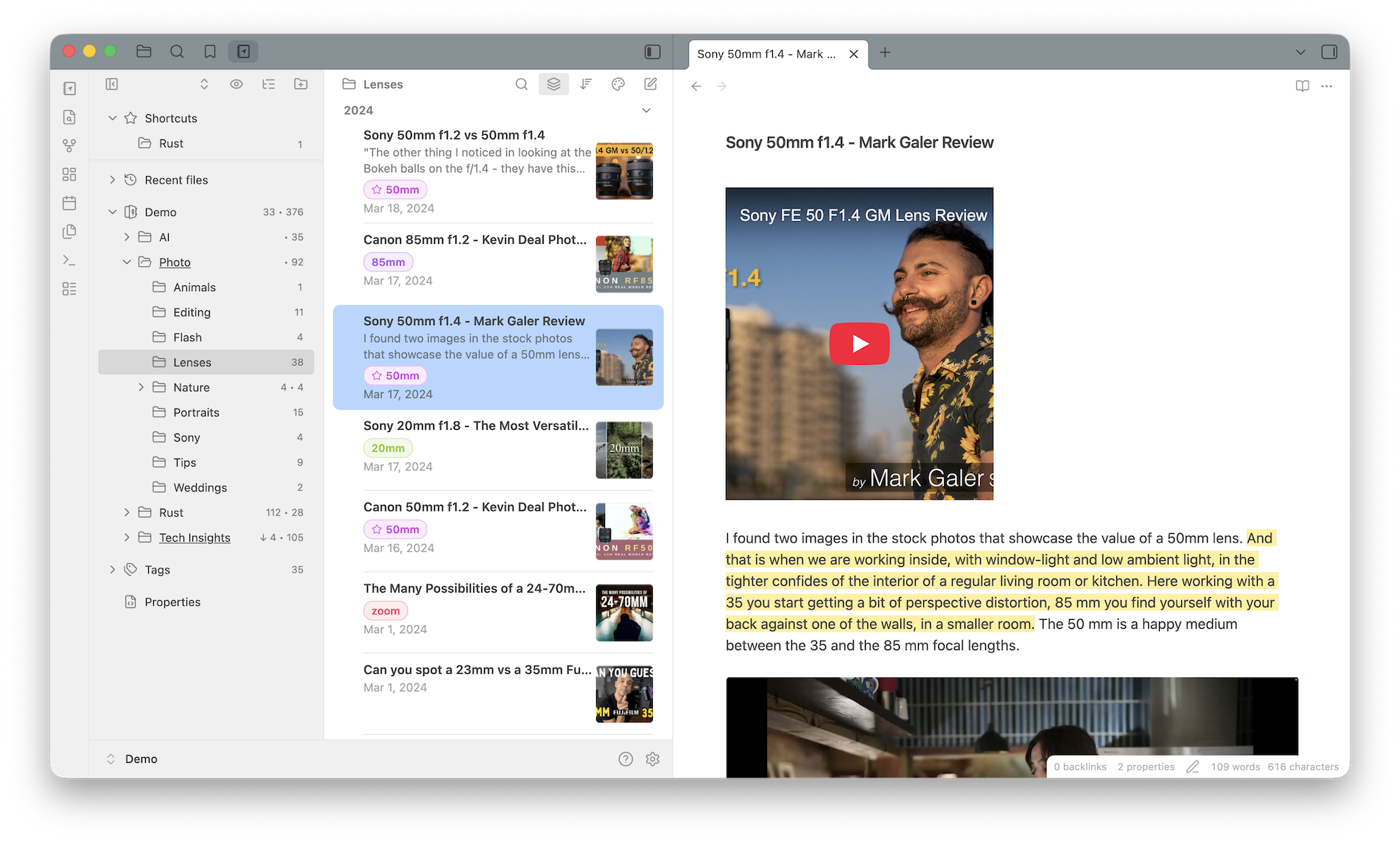
- Notebooks and sections → folder tree. Your hierarchy carries over as folders, browsable in the left pane.
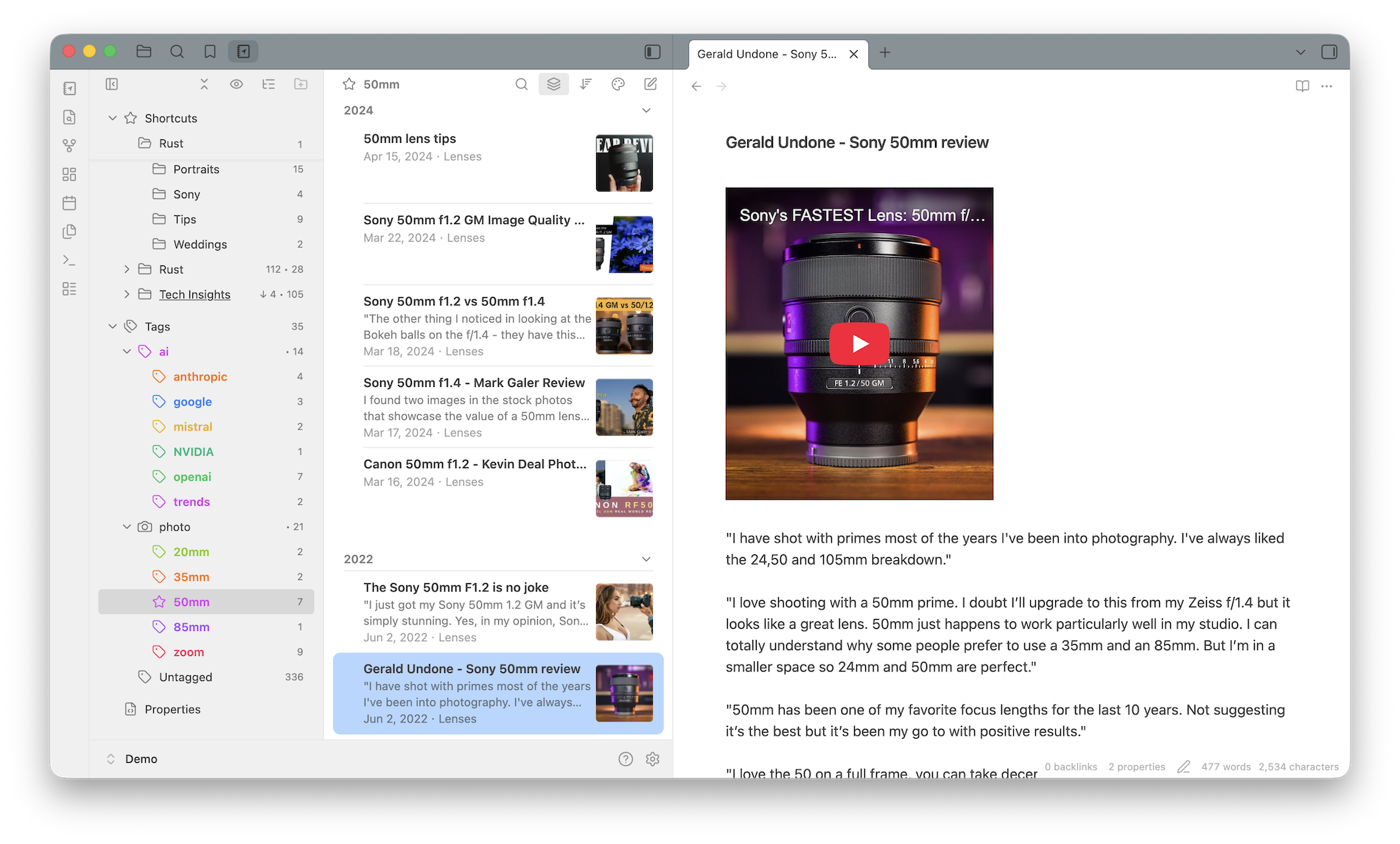
- Page lists → visual previews. Unlike OneNote's bare page titles, every note shows a preview and thumbnail.
- Colored notebooks → colors and icons. Give each folder its own color and icon, just like OneNote's colored notebook covers.
- Tags and properties add dimensions OneNote never had.
And your notes are just files: back them up, grep them, version them with git, or open them in any editor. No lock-in, ever.
Frequently asked questions
Can I import my OneNote notebooks into Obsidian?
Yes. The official Obsidian Importer plugin connects to your Microsoft account and imports your OneNote notebooks and sections, converting pages to Markdown with images and attachments.
Is Obsidian a good OneNote alternative?
Yes, if you want fast, future-proof notes. Your notebooks become folders of Markdown files that open instantly, work fully offline and never get stuck in sync conflicts.
What happens to OneNote's notebooks and sections?
They map to folders and subfolders. Notebook Navigator shows them in a dual-pane layout, structure on the left and pages with previews on the right, so the mental model carries over.
Does Obsidian have something like OneNote's freeform canvas?
Obsidian's built-in Canvas gives you a freeform board for visual thinking, while regular notes stay as structured Markdown pages.
Is Obsidian with Notebook Navigator free?
Yes. Obsidian is free for personal use and Notebook Navigator is free and open source under the GPL-3.0 license.
Fast notes, in files you own
Notebook Navigator is free, open source, and takes a minute to install.