Why journalers are switching from Day One
- The full feature set requires a Premium subscription, paid every year, forever.
- Your journal lives in Day One's cloud. It is encrypted, but it is not a folder of files you can open with anything.
- Getting entries out means an export, and exports lose the living, browsable structure.
- It is a separate silo. Your journal cannot link to your notes, projects and ideas.
In Obsidian, journaling is just daily notes, plain Markdown files with photos next to them. Notebook Navigator adds the part Day One got right: a calendar with feature images that makes your journal feel like a timeline of your life, not a folder of text files.
Day One vs Obsidian with Notebook Navigator
| Day One | Obsidian + Notebook Navigator | |
|---|---|---|
| Price | Premium subscription for the full experience | Free for personal use; Notebook Navigator is free and open source |
| Where entries live | Day One's sync service | Markdown files on your device |
| Calendar | Calendar timeline | Calendar with daily, weekly, monthly, quarterly and yearly notes |
| Photos | Photo entries and media view | Feature images on calendar days and note thumbnails |
| Templates | Entry templates | Daily note templates, plus Periodic Notes and Templater integration |
| Journals | Multiple journals | Folders, tags or properties, organize however you like |
| Platforms | Mac, iOS, Android and web | Windows, macOS, Linux, iOS and Android |
| Beyond journaling | Journaling only | Your journal lives inside your whole knowledge base |
How to move from Day One to Obsidian
1. Export your journal from Day One
In Day One, export your journal as JSON. You get a zip file containing your entries and media.
2. Install Obsidian and create a vault
Download Obsidian for free from obsidian.md and create a vault for your journal, or add it to the vault you already use for notes.
3. Import with the Day One Importer plugin
Install the community Day One Importer plugin from Community plugins, point it at your export, and it converts your entries, including inline photos, videos, tags and metadata, into Markdown notes.
4. Set up your visual journal
Install Notebook Navigator (or use this install link), enable its calendar, and configure daily notes. Days with entries show their photos right on the calendar.
Journaling in Obsidian, the Day One way
- Calendar of your life. Daily, weekly, monthly, quarterly and yearly notes in one view, with feature images on each day.
- One click to today. Click any day to create or open its note, with task indicators showing what is left to do.
- Time travel. Cmd-click a date to instantly filter every note from that period.
- Photo thumbnails. Entries with photos show them in the note list automatically.
- Writing habits. Word-count targets with live progress bars, great for morning pages.
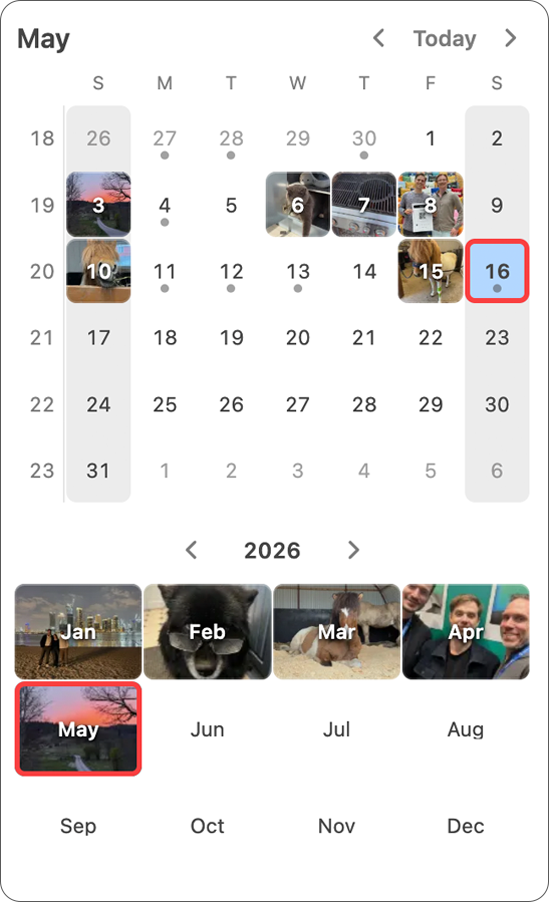
Everything stays plain Markdown: no proprietary format, no subscription, and your journal can link to the rest of your notes.
Frequently asked questions
Can I import my Day One journal into Obsidian?
Yes. Export your journal from Day One as JSON, then use the community Day One Importer plugin to convert entries, including photos, tags and metadata, into Markdown notes in your vault.
Does Obsidian have a calendar view like Day One?
With Notebook Navigator, yes. Its built-in calendar shows daily, weekly, monthly, quarterly and yearly notes, and days display feature images so your journal becomes a visual timeline.
Can I journal with photos like in Day One?
Yes. Add photos to your daily notes and Notebook Navigator shows them as thumbnails in the note list and as feature images on the calendar, much like Day One's photo timeline.
Is Obsidian free for journaling?
Yes. Obsidian is free for personal use and Notebook Navigator is free and open source. There are no entry limits, and your journal is stored as plain files on your device.
Is my journal private in Obsidian?
Your journal lives as local files on your device, and nothing leaves it unless you choose a sync service. The optional Obsidian Sync is end-to-end encrypted.
Start journaling in files you own
Notebook Navigator is free, open source, and takes a minute to install.